Frequently asked questions
- Citace PRO and the citation generator
- Microsoft Word extension
- Google Docs extension
- Browser extensions
- Technical support
1. Citace PRO and the citation generator
Click on the Forgotten password link and input the e-mail associated with your account. We will send you a password reset e-mail shortly.
If you are using an institutional account (by clicking on an institution logo when signing in), contact your university administrator for help.
Registration is required to use the citation generator. With a user account, you can save and manage your citations and return to them at any time. Another advantage is that you only need to create a citation once and can come back to it whenever you need. Registration also helps keep the service running reliably and protects the generator from automated misuse.
No, you need a user account to create citations in the generator. Once registered, you can use the generator repeatedly and work with your saved citations.
Yes, registration is free. After creating an account, you can use the features of the free version, Citace PRO Free. Advanced features are available in the paid version, Citace PRO Plus.
Your e-mail address is used to identify your user account and to reset a forgotten password. If you lose your login details, it allows you to regain access to your account.
While logged into your Citace PRO account, click on Settings (cogwheel icon on the top right) and select the My account option. From there, click on the Upgrade to Citace PRO Plus button, and continue according to the displayed instructions. After your payment goes through, your account will automatically be upgraded to Citace PRO Plus.
While logged into your Citace PRO account, click on Settings (cogwheel icon on the top right) and select the My account option. From there, click on the Extend subscription button, and continue according to the displayed instructions. After your payment goes through, your account will automatically be upgraded to Citace PRO Plus.
E-mail us with your username at podpora@citace.com. We will transfer your university Pro account to a Free account.
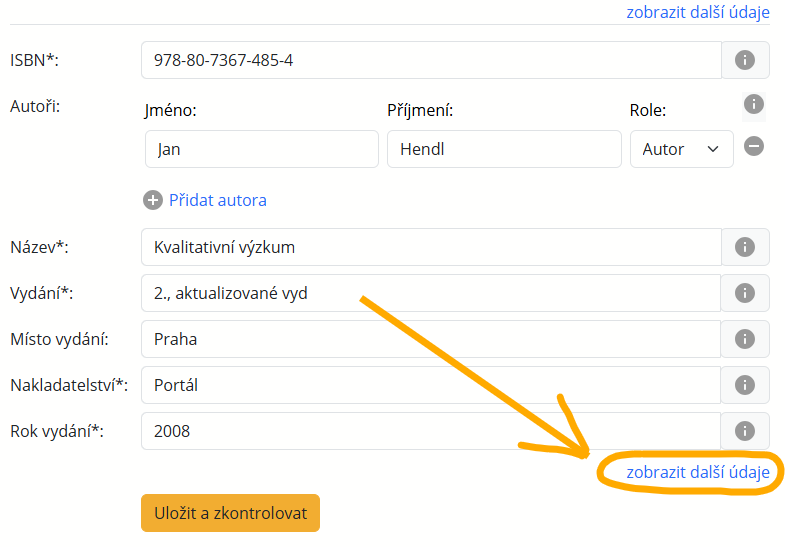
According to most citation styles, the page range is not required to create a citation, and is therefore considered an Additional information field. If you want to input a non-required data point, click the Display more details button while editing a citation.
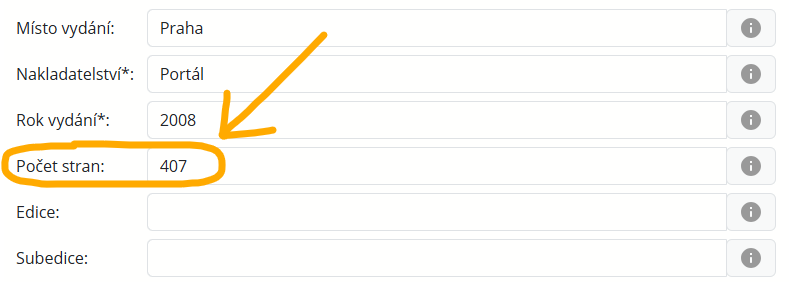
A údaj o počtu stran vepište do příslušného políčka.
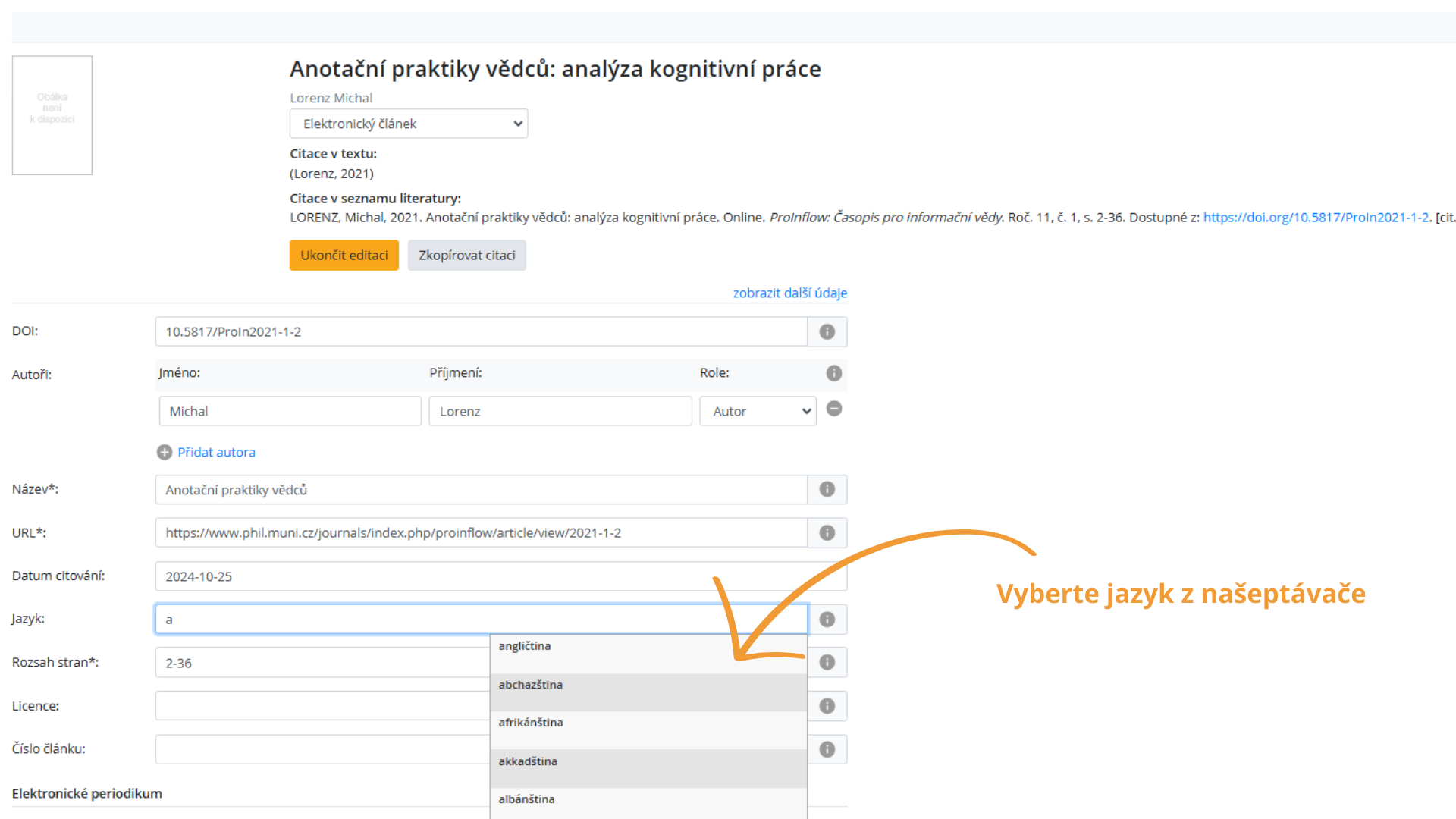
Open the Additional information section and input the Language. Use the auto-fill to select a language such as German, Czech, etc.
The citation manager marks all empty required fields in red. This error message is strictly informational, and you can save the citation even without fixing this warning first.
You can cancel your account in Settings using the Cancel account button. After cancellation you will be logged out and it will no longer be possible to log in to the account. The account and your personal data will be permanently deleted within 7 days.
2a. Microsoft Word extension
The extension is available to users of the paid plan of Citace PRO Plus (individual or institutional access).
Log into your Citace PRO Plus account, open the Settings (cogwheel icon in the top right corner) and click on the Extensions link.
The older version can be found in the Word ribbon. It works only on computers using Windows 10 and MS Word 2013, 2016, 2019, or Office 365. Other operational systems (Windows 7, xOS, Ubuntu, etc.) and other text editors (OpenOffice, etc.) are not supported. Technical support for the older version of the extension will end in 2024.
The newer version works as an Add-in, available in Word as a side taskpane. At this point, it works for Microsoft Word 2016 and newer on Mac, Windows 10, Windows 11, and in the Microsoft 365 browser editor. This version of the extension generates citations and bibliographies independently from the user settings of Word. Because of this, there are no longer inconsistencies between the citations in Word and in the citation manager.
Both extensions work independently of each other; it is therefore important to use only one of them at a time.
Yes, you can. However, you have to choose only one to use for each document. The extensions are not compatible: citations inserted with the older version will not be recognized by the newer version, and vice versa.
Citace mezi starším a novějším typem doplňku nelze přesouvat. K vkládání citací je potřeba využívat pouze jeden typ doplňku.
1. In Word, open the Insert ribbon tab, click on the Store button, and search for the Citace PRO extension there.
2. In the Citace PRO citation manager, open Settings (cogwheel icon in the top right), and select the Add-ins option. You can find a link to the Office Store there.
Contact your institution's manager and ask them to allow you to install extensions.
In the Insert tab, click on My apps and choose the Citace PRO extension.
While logged into your Citace PRO account, click on the Settings icon, and choose the Add-ins option. You will find a unique log in code to use in the extension there.
To refresh citations from the manager, click the Load button in the extension menu.
Input the first few letters of your search query, and the citation list will start showing only citations with the desired attributes. The search looks through titles, authors, and publication dates of each citation. You can further limit the results by chosing a specific folder to search through.
Choose an in-text citation by clicking on it. Select a document from the citation list to automatically insert it after the original citation. To delete a citation from the parentheses, click on the Edit button in the extension's menu, and click on the Delete citation button next to one of the citations.
Choose an in-text citation by clicking on it. Click the Edit button in the extension's menu. This will open a pop-up window, in which you can fill in the page range and choose to suppress the author. After you are finished with the edits, click on the Save button.
To clear the extension's cache, click on the File option in the Word ribbon, and select Options. Navigate to the Trust Center tab, and click on the Trust Center settings button. Open the Trusted Add-in Catalogs tab, and check the "Next time Office starts, clear all previously-started web add-ins cache" checkmark. After restarting Word, the addin's cache will be cleared. You can read the official instructions in the Word documentation.
2c. Google Docs extension
The extension is available to users of the paid plan of Citace PRO Plus (individual or institutional access).
Log into your Citace PRO Plus account, open the Settings (cogwheel icon in the top right corner) and click on the Extensions link.
While logged into your Citace PRO account, click on the Settings icon, and choose the Add-ins option. You will find a unique log in code to use in the extension there.
To refresh citations from the manager, click the Load button in the extension menu.
Input the first few letters of your search query, and the citation list will start showing only citations with the desired attributes. The search looks through titles, authors, and publication dates of each citation.
We are currently implementing this feature.
We are currently implementing this feature.
The entire extension cache is cleared on log out.
3. Browser extensions
The browser extensions are available to all users with a Ciace PRO Plus account (paid monthly, yearly, or using an institutional access).
At this time, we offer extensions for Chrome, Firefox, and Edge.
While logged into your Citace PRO account, click on Settings (cogwheel icon in the top right), and choose the Add-ins option. Then, choose an extension based on the browser you use, and install the extension.
Firefox requires you to enable newly installed extensions. Open the Application menu (hamburger menu icon on the top right), select the Add-ons and themes option, and enable the extension from there.
Open the extension to create a citation for your bibliography of the webpage you currently have open. You can copy the citation into your clipboard, or save it directly into the Citace PRO Plus citation manager.
The extension also searches the webpage for any sources mentioned. The extension looks for ISBN and DOI identifiers to locate these sources. By clicking on each found source, you can save it into the Citace PRO Plus citation manager.
Yes. Open the extension to create a citation for your bibliography of the webpage you currently have open. You can copy the citation into your clipboard, or save it directly into the Citace PRO Plus citation manager.
Technical support
Do you still have questions? E-mail our support team at podpora@citace.com. Include your username, a link to the page you are having troubles with, and describe your problem.